当您第一次运行 GSA SER 时,第一个出现的屏幕是项目屏幕。这是该程序的主要图形用户界面 (GUI),可显示您的自动化工作的实时进度。
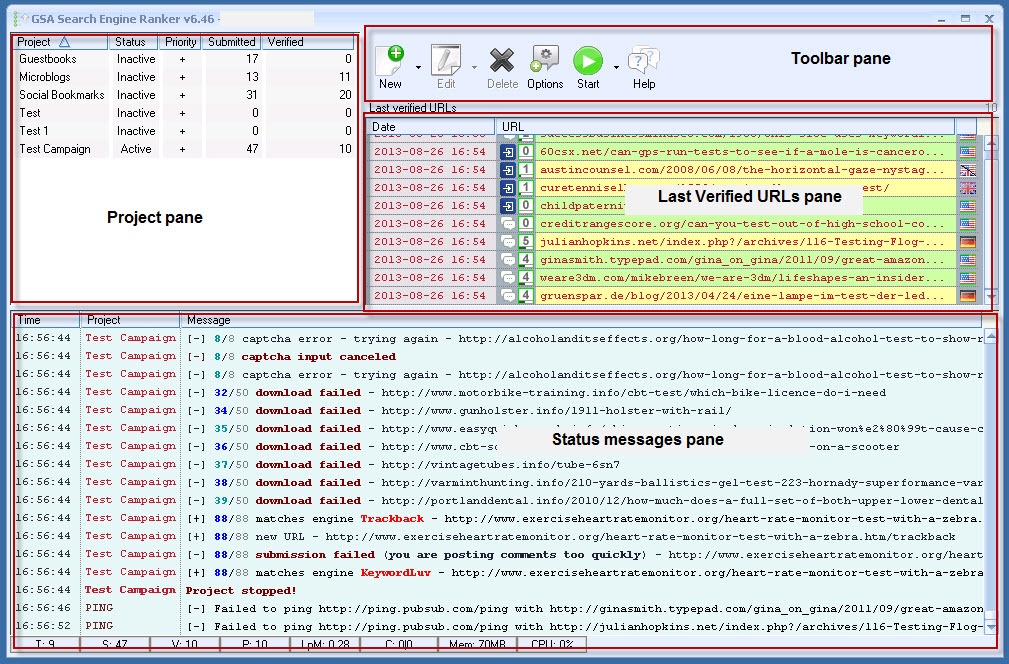
该屏幕分为四个主要部分:
- 项目窗格
- 工具栏窗格
- 最后验证的url窗格
- 状态消息窗格
项目面板
项目窗格包含系统中所有现有项目的列表。
项目窗格包含一个表格,显示每个项目名称、状态(活动、非活动)、优先级(高、正常、低、最低)、提交数量和已验证链接的数量。
By right-clicking an item in the list, you can perform project-specific actions, such as:
- 改变状态状态
- 更改优先级状态
- 显示和导出所有提交的 URL
- 显示和导出所有经过验证的 URL
- 将您生成的 URL 导入到项目中
- 修改项目信息
- 显示统计数据
- 编辑项目选项
工具栏面板
工具栏包含用于创建、编辑和删除项目的按钮。您还可以在此处启动和停止执行运行并获取程序的帮助。单击“选项”按钮也可以使用全局选项。
最后验证的Urls窗格
并非 GSA SER 创建的所有提交内容都经过验证以包含在 Google 索引中。根据您是否使用索引服务,这可能需要数天或数周时间。谷歌也有可能根本不会索引该页面。
但是,GSA SER 会为您做额外的工作,通过遍历所有提交的链接并报告链接是否已编入索引来确定活动是否成功。
GSA will report the date and time of URL inspections and the complete URL and Google page rankings. If you hover the mouse cursor over the URL item, you will see additional information such as the content engine, anchor text used in the link, non-follow/follow status, page ranking, index status, country of origin and inbound, and number of outbound links on the page.
The website is color-coded:
| color | described |
| @ Yellow: Yellow | Not following the link |
| @ Green: Green | please click on the link |
| @ Gray: Gray | Redirect links to your website |
| @ Red: Red | Whois /Statistics website only |
Status Message/Records pane
To let you know the progress of the automated run, GSA SER records all project activities and displays them in the logging pane. By right-clicking an item, you will be able to clear the contents of the pane, copy all items to the clipboard, open a browser to view the url, turn logging on/off, and save to a file.

In addition, there is a statistics column at the bottom of the pane.
| items | described |
| T | Number of threads currently running |
| S | Number of links submitted that day |
| V | Number of verified links that day |
| P | Number of active agents |
| LpM | Number of links submitted per minute |
| C | The number of Captcha sent to the Captcha service |
| Mem | Amount of memory used by GSA SER |
| CPU | CPU usage used by GSA SER |
ranking tracking
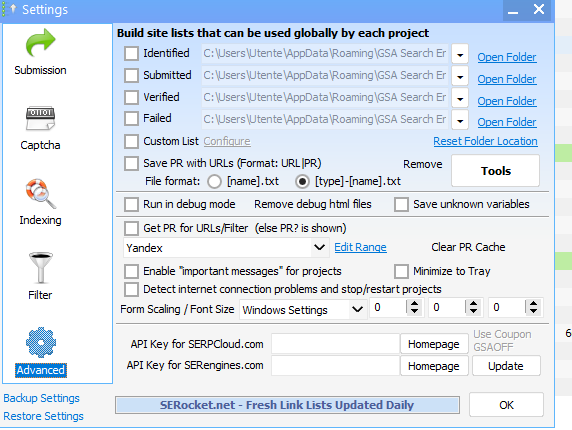
You can use serpcloud.com to track the ranking of URLs and specific keywords. As shown in the screenshot below, you will get detailed ranking changes for each project with this feature enabled. To view the Tracking tab, you need to register on serpcloud.com and enter your API in Options → Advanced.