
Download WordPress
When you open the linkhttps://wordpress.org/download/When, you will see the screen shown in the following snapshot-
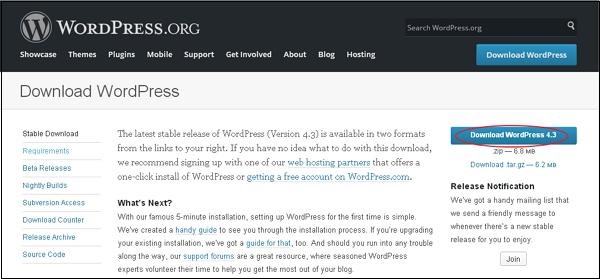
Setting up WordPress into your system is easy. The following steps describe how to set up WordPress locally on your system.
Step (1) - Unzip the downloaded WordPress folder and upload it to your Web server or local host.
Step (2) - Open the browser and navigate to the WordPress file path, and you will see the first screen of the WordPress installer, as shown in the following figure. In our example, the path islocalhost/< Your_wordpress_folder >。
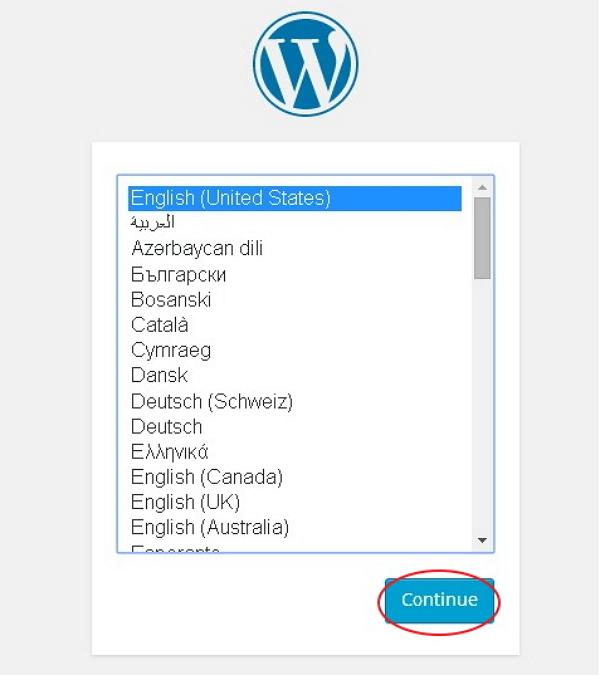
Select your WordPress language and click"Continue"。
Step (3) - In this step, you can view the information you need in the database before continuing to install WordPress.
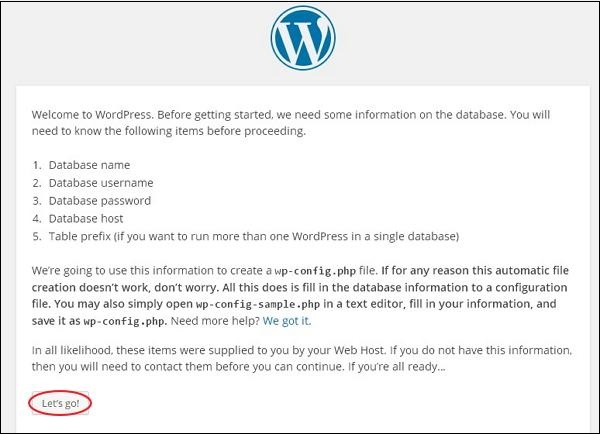
clickLet's go!
Step (4) - Here, you must enter information about the MySQL database, as described in the following screen.
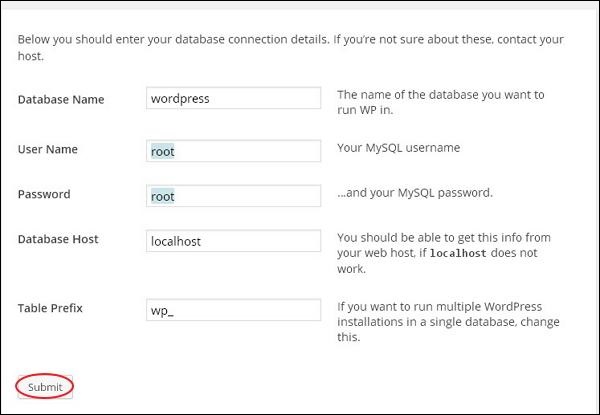
- database name- Enter the name of the database you created in WordPress's MySQL database.
- user name- Enter the user name for the MySQL database.
- password- Enter the password you set for the MySQL database.
- database host- Write the host name, which is localhost by default.
- table prefix- Used to add prefixes to database tables, which helps run multiple sites on the same database. It adopts default values.
After filling in all the information, click"Submit"Button.
Step (5) - WordPress checks database settings and provides you with a confirmation screen, as shown in the snapshot below.
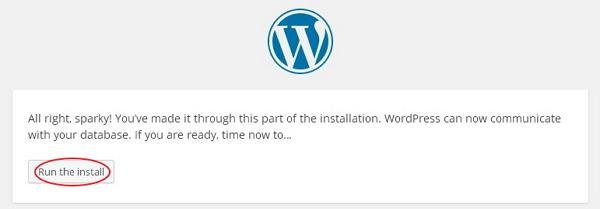
clickrun setup
Step (6) - Enter management information.
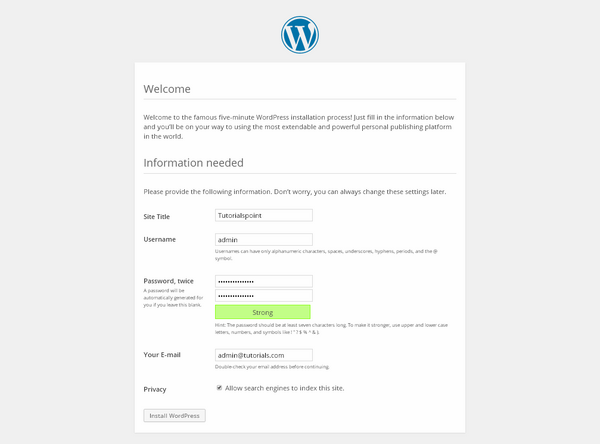
It contains the following fields-
- site title- Enter the name of the site you want to create in WordPress.
- user name- Enter your username based on your selection when logging in to WordPress.
- password twice- Enter your password twice to protect your website.
- your email- Enter your email address, which will help recover passwords or any updates.
- privacy- It allows search engines to index the website after checking the check box.
After filling in all the information, click"Install WordPress"Button.
Step (7) - After the installation is successful, you will see a screen indicating success, as shown below.
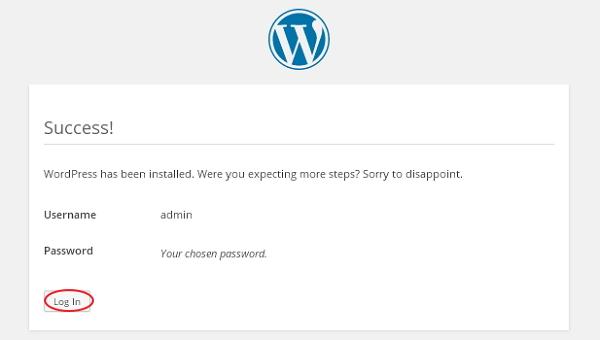
You can view the username and password details added in WordPress.
clickloginButton.
Step (8) - After clicking login, you will get the WordPress Management Panel, as shown in the following figure.
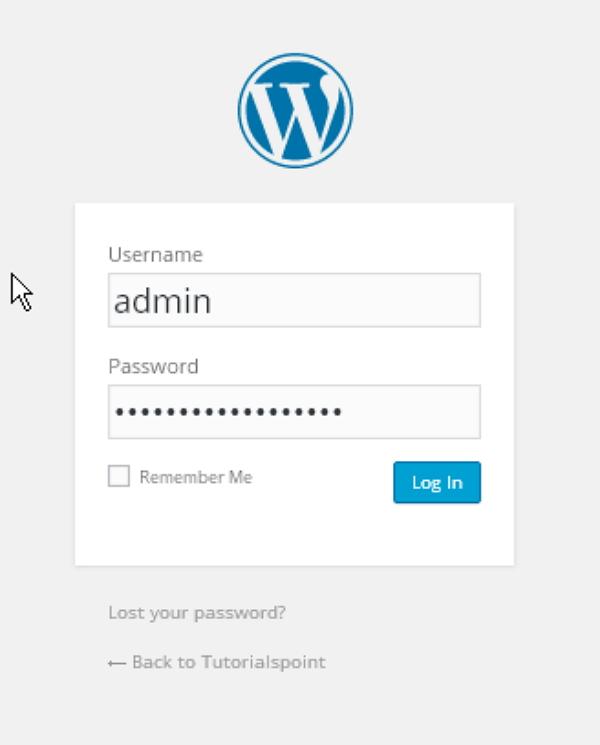
Enter the username and password you mentioned during the installation process (as shown in step 6), and then click"Log in"Button.